Lab Report 1
Installing VScode
- Go to the Visual Studio Code website.
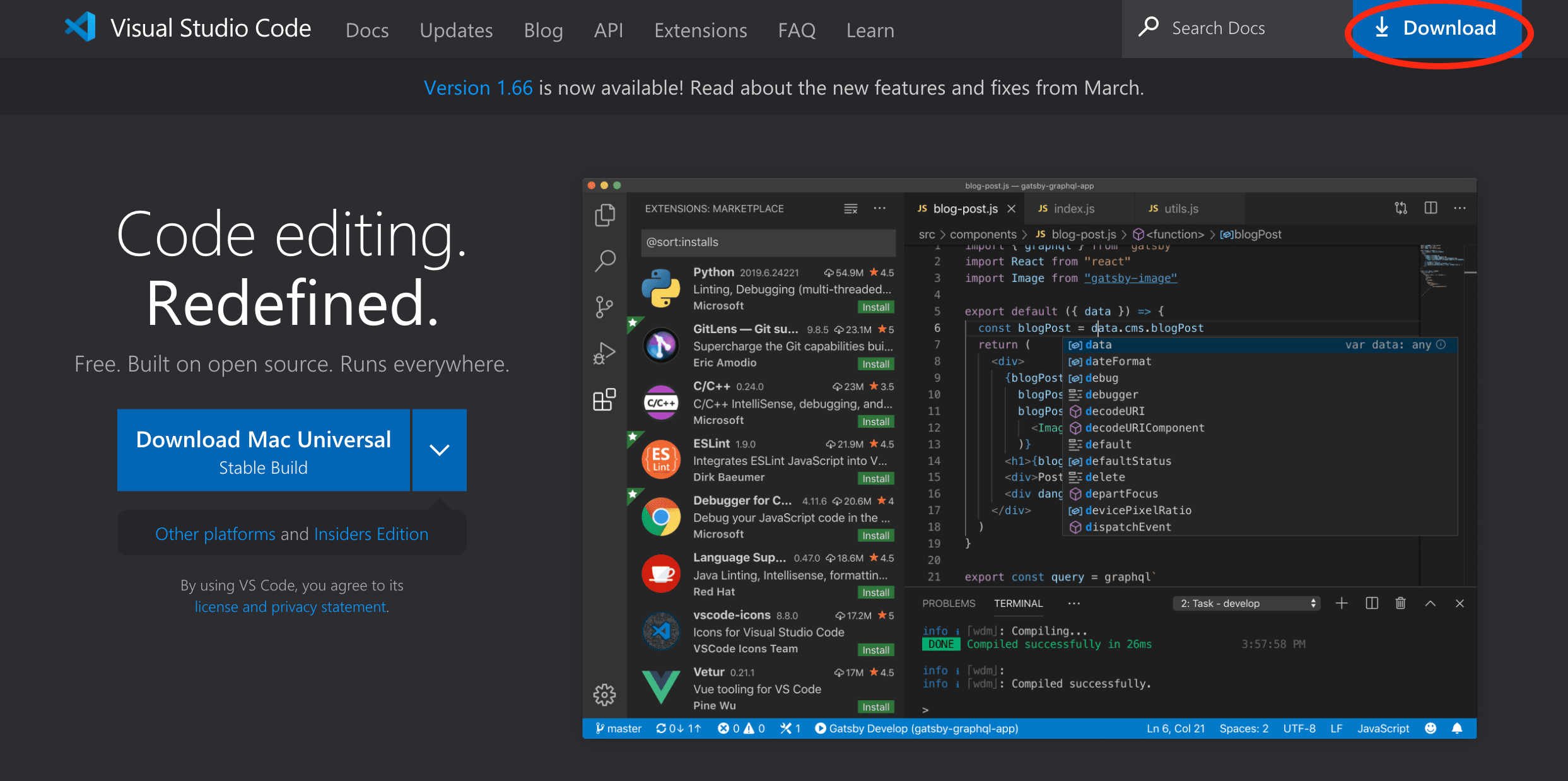
- Click the “Download” button pictured below, and choose the appropriate download corresponding to your operating system.
- Follow the application’s instructions for installation.
Remotely Connecting
- If you are on Windows, install the OpenSSH program. If you are on Mac, ignore this step and proceed to Step 2.
- Look up your course specific account by entering the information on this website.
- Open VScode and open a terminal by clicking “Terminal” in top menu and then selecting new terminal.
-
Enter the following command into the terminal, replacing
XXwith the appropriate letters from your course specific account.ssh cs15lsp22zXX@ieng6.ucsd.edu -
If you get a message that reads:
The authenticity of host 'ieng6.ucsd.edu (128.54.70.227)' can't
be established.
RSA key fingerprint is
SHA256:ksruYwhnYH+sySHnHAtLUHngrPEyZTDl/1x99wUQcec.
Are you sure you want to continue connecting
(yes/no/[fingerprint])?
Enter
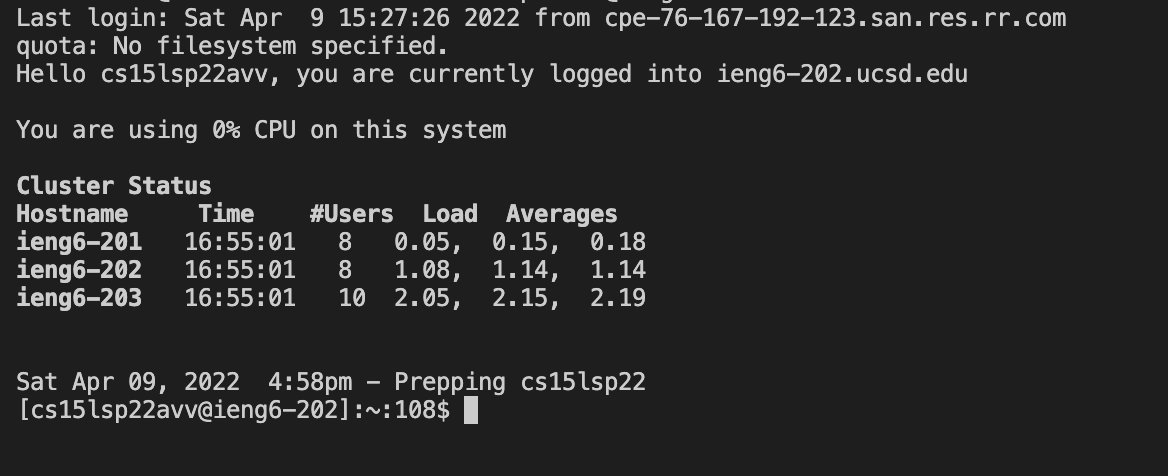
yesinto the terminal. - Enter your password, and if you see the following screen you are connected!
Trying Some Commands
- Try the
ls -latandls -acommands on the remote server.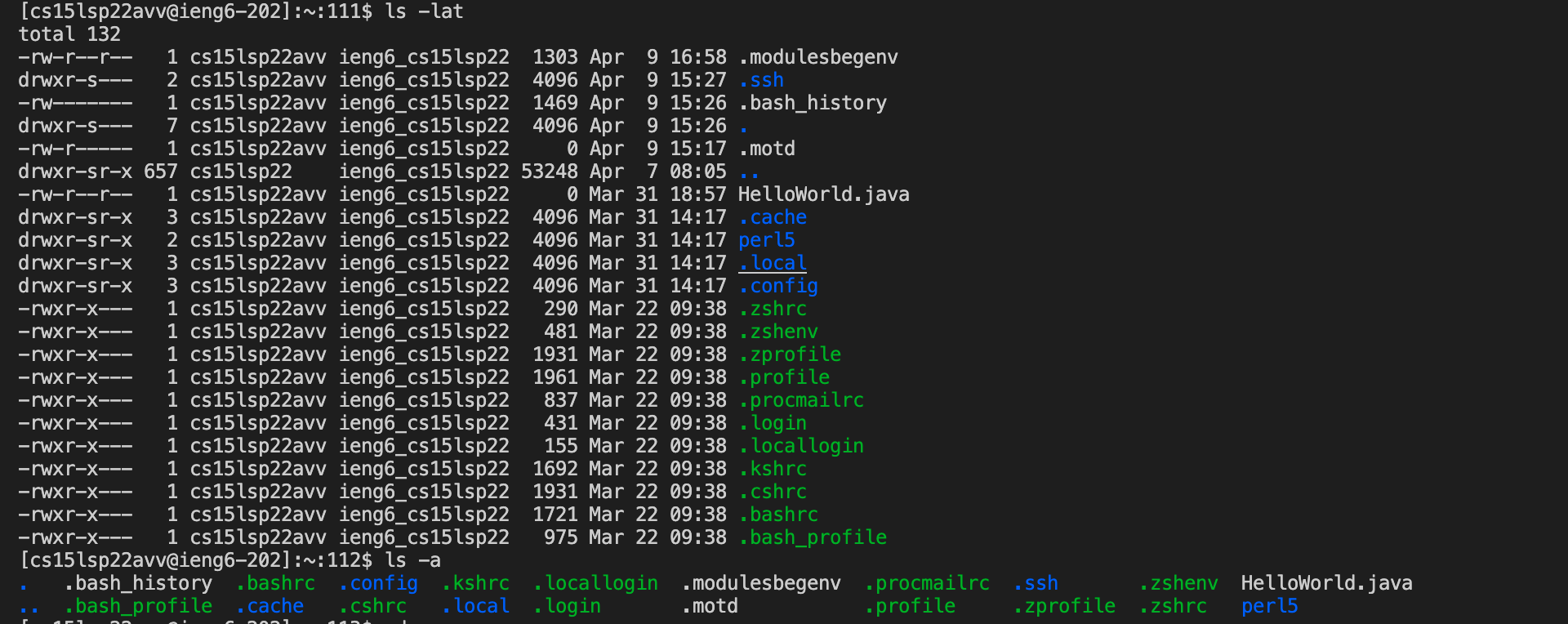
- Try the
cp /home/linux/ieng6/cs15lsp22/public/hello.txt ~/and ` cat /home/linux/ieng6/cs15lsp22/public/hello.txt` commands on the remote server.
- Try the
ls -latandls -acommands on client.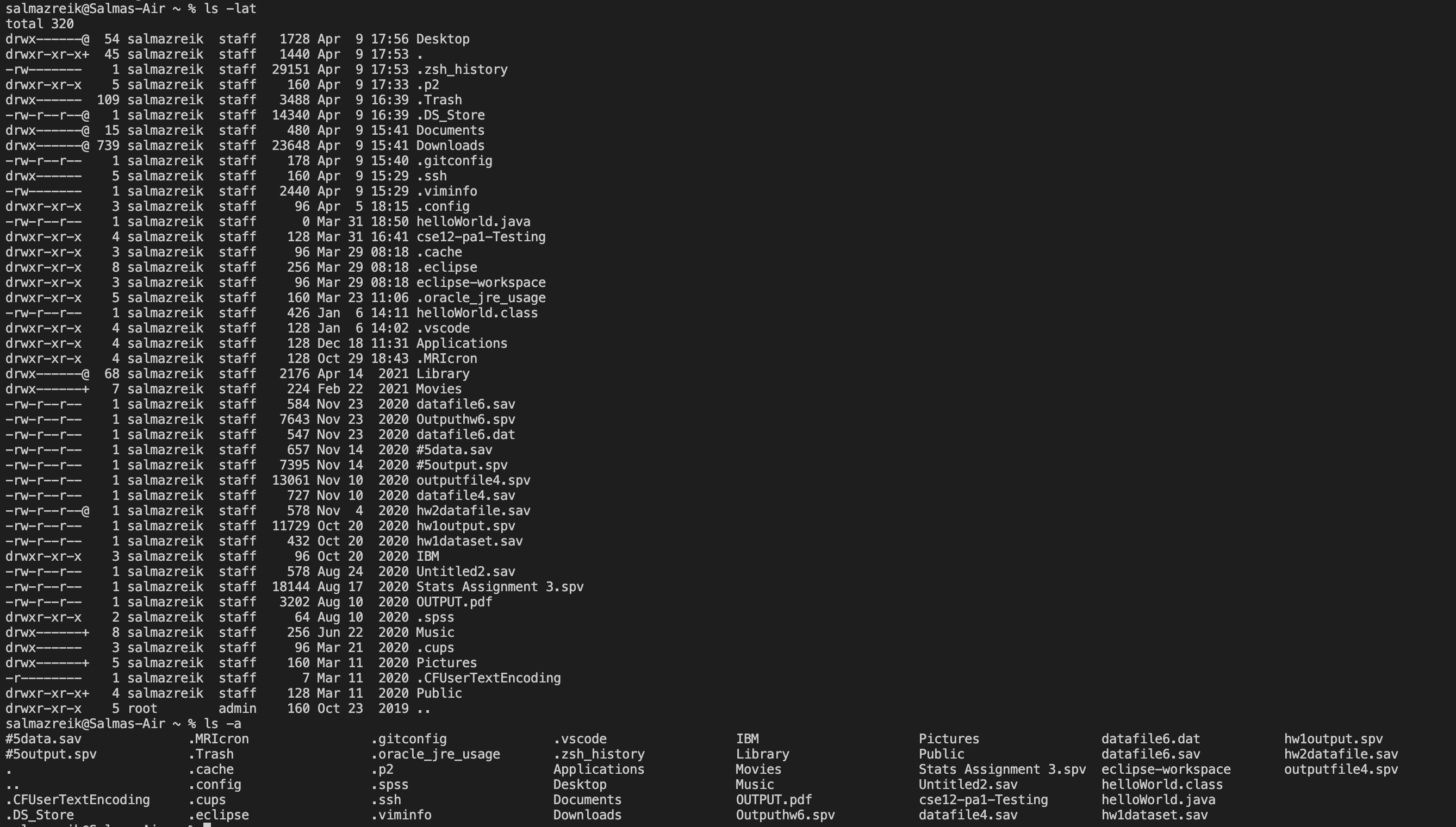
- Try the
cp /home/linux/ieng6/cs15lsp22/public/hello.txt ~/and ` cat /home/linux/ieng6/cs15lsp22/public/hello.txt` on client.
Moving Files With scp
- Put java file (in this case, WhereAmI.java) onto your computer.
- Enter
scp WhereAmI.java cs15lsp22XX@ieng6.ucsd.edu:~/into the terminal on client, again replacingXXwith the appropriate letters from your course specific account. - Use ssh to enter remote server.
- Use command
lsto check if file (WhereAmI.java) is in ssh.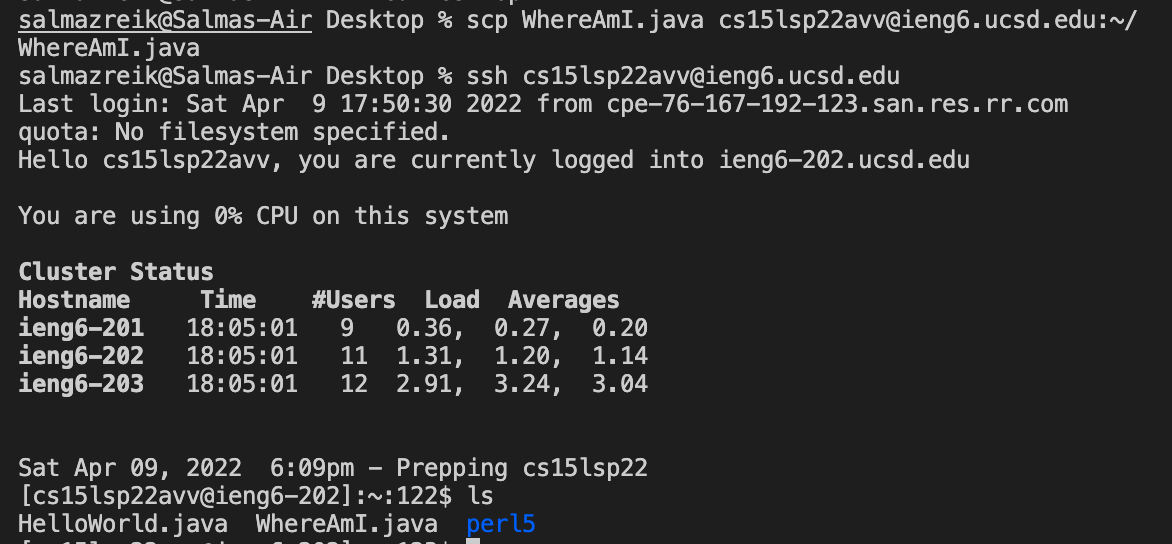
Setting An SSH Key
- Enter
ssh-keygeninto terminal on server. - When prompted with
Enter file in which to save the key, enter/Users/<user-name>/.ssh/id_rsareplacing<username>with the appropriate one on your client. - Enter an empty space bar twice when prompted with
Enter passphrase (empty for no passphrase):. - If you are on Windows, use these intructions to complete an extra step. If you are on Mac, ignore this step and proceed to Step 5.
- Enter remote server and enter command
mkdir .ssh. Exit server. - On client, enter
scp/Users<user-name>/.ssh/id_rsa.pub
cs15lsp22XX@ieng6.ucsd.edu:~/.ssh/authorized_keys
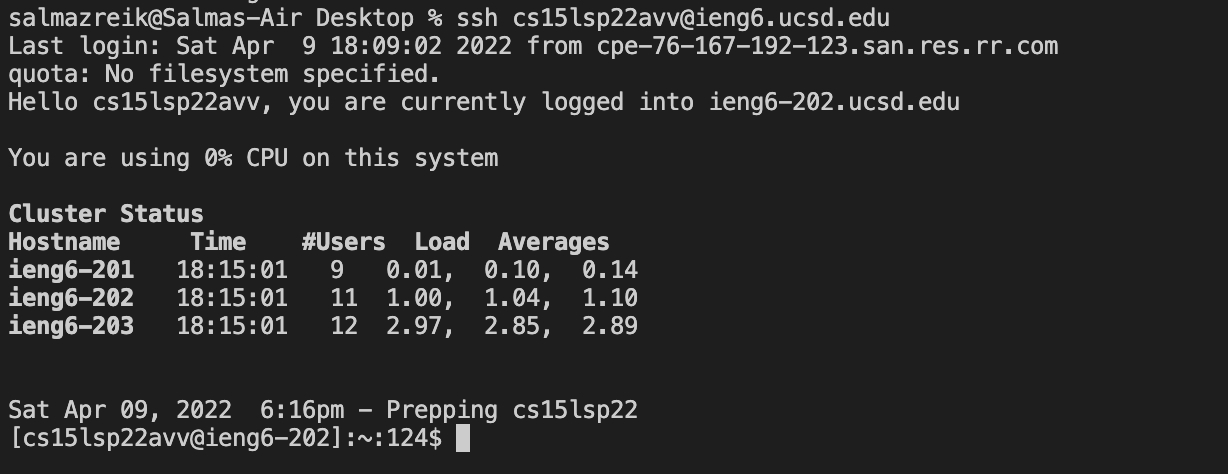
, replacing<user-name>andXXwith appropriate inputs. - Test if you can login without needing a password.
Optimizing Remote Running
-
For copying a local edit in WhereAmI.java to the server and running it, first enter
scp WhereAmI.java cs15lsp22avv@ieng6.ucsd.edu:~/into the terminal, followed byssh cs15lsp22avv@ieng6.ucsd.edu "javac WhereAmI.java; java WhereAmI"and you should see it run.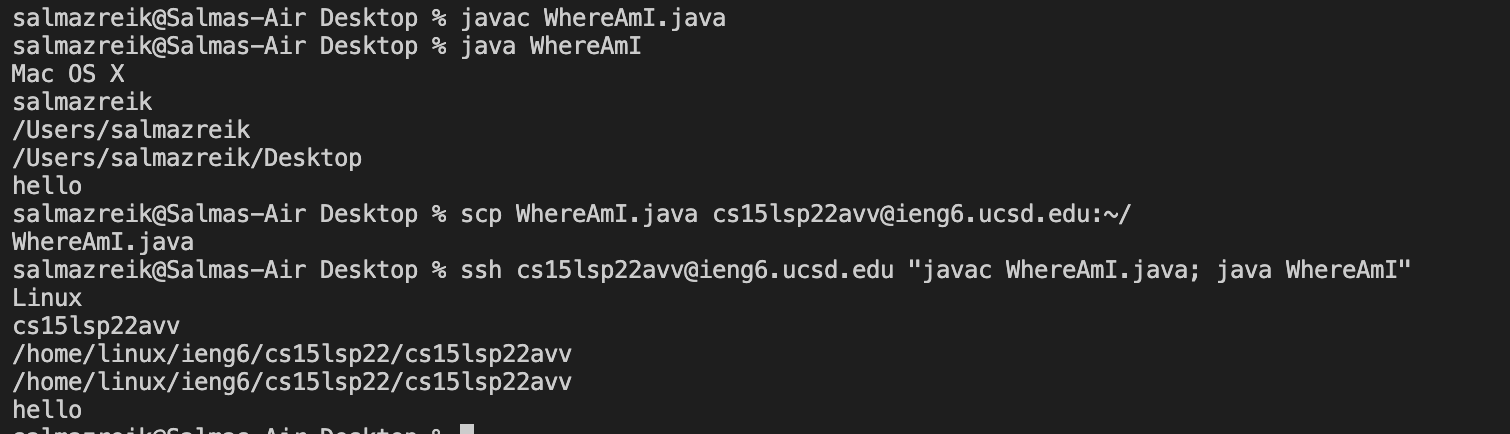 (Here one can see the commands making the file run on the server, with the last line
 "hello"being the local edit. )